How to Deploy Django on Ubuntu with Apache2 & mod_wsgi (Complete Step-by-Step Guide)
Deploying Django on a live server can feel tricky the first time, but once you understand the flow, it’s actually simple.
In this guide, we’ll deploy a Django application on Ubuntu Linux using Apache2 and mod_wsgi — a stable, production-ready setup used worldwide.
This guide works for:
- Ubuntu 20.04 / 22.04 / 24.04
- Python 3.x
- Django 3.x / 4.x / 5.x
Let’s get started! 💡
1. Install Apache2, Python, and mod_wsgi
Update system packages:
sudo apt update
Install Apache2:
sudo apt install apache2
Install mod_wsgi + virtual environment tools:
sudo apt install libapache2-mod-wsgi-py3 python3-venv
Enable mod_wsgi:
sudo a2enmod wsgi
sudo systemctl restart apache2
Apache is now ready to speak with Django.
2. Create Your Django Project Directory
Choose where you want your project to live:
sudo mkdir -p /var/www/myproject
sudo chown $USER:$USER /var/www/myproject
cd /var/www/myproject
3. Create a Virtual Environment
python3 -m venv venv
source venv/bin/activate
Install Django:
pip install django
Create the project:
django-admin startproject myproject .
4. Configure Django Static Files
Inside settings.py, set:
STATIC_URL = "/static/"
STATIC_ROOT = BASE_DIR / "static"
Collect static files:
python manage.py collectstatic
5. Update ALLOWED_HOSTS
In settings.py, add your domain and localhost:
ALLOWED_HOSTS = ["example.com", "www.example.com", "localhost", "127.0.0.1"]
6. Determine Your WSGI File Path
Find your Django project’s WSGI file:
find . -maxdepth 2 -name "wsgi.py"
You’ll get something like:
./myproject/wsgi.py
Take note of your <project_name>.
7. Create Apache VirtualHost for Django
Create a config file:
sudo nano /etc/apache2/sites-available/myproject.conf
Paste this configuration (replace <project_name> with yours):
<VirtualHost *:80>
    ServerName yourdomain.com
    ServerAlias www.yourdomain.com

    WSGIDaemonProcess myproject \
        python-home=/var/www/myproject/venv \
        python-path=/var/www/myproject

    WSGIProcessGroup myproject
    WSGIScriptAlias / /var/www/myproject/myproject/wsgi.py

    <Directory /var/www/myproject/myproject/>
        <Files wsgi.py>
            Require all granted
        </Files>
    </Directory>

    Alias /static /var/www/myproject/static
    <Directory /var/www/myproject/static>
        Require all granted
    </Directory>

    ErrorLog ${APACHE_LOG_DIR}/myproject-error.log
    CustomLog ${APACHE_LOG_DIR}/myproject-access.log combined
</VirtualHost>
8. Enable the Site & Reload Apache
Enable your config file:
sudo a2ensite myproject.conf
Reload Apache:
sudo systemctl reload apache2
Or fully restart:
sudo systemctl restart apache2
9. Fix Permissions (Important!)
Allow Apache to read project files:
sudo chown -R www-data:www-data /var/www/myproject
sudo chmod -R 755 /var/www/myproject
10. Test Your Django Deployment
Visit:
http://example.com/
If everything is correct, you should see:
- Django homepage or
- A Django-styled 404 page (which means WSGI is working!)
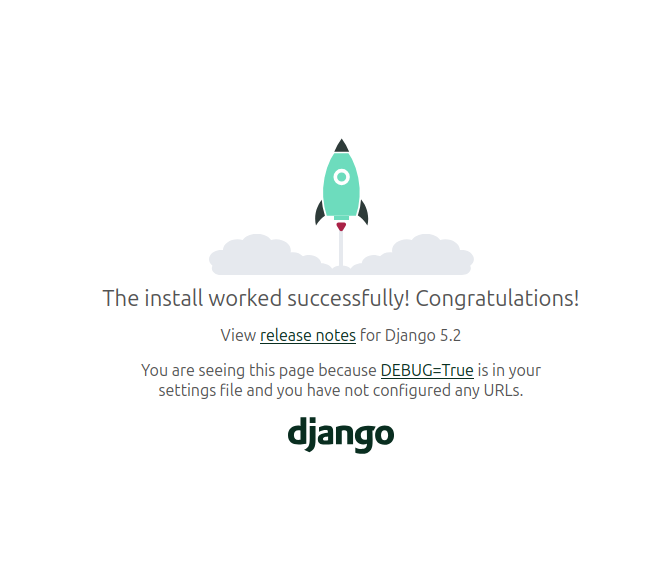
If you see:
- Apache plain “Not Found” page → WSGI is not configured correctly
- 500 error → check logs below
11. Check Logs (for Debugging)
Apache error log:
sudo tail -f /var/log/apache2/myproject-error.log
Apache access log:
sudo tail -f /var/log/apache2/myproject-access.log
Check logs whenever something doesn’t load — they always show the exact issue.
12. Enable HTTPS (Let’s Encrypt) (Optional)
Install Certbot:
sudo apt install certbot python3-certbot-apache
Run SSL setup:
sudo certbot --apache -d example.com -d www.example.com
Your Django site is now HTTPS-secured 🎉
Final Notes
- Use reload for config changes
- Use restart for full WSGI reload
- Use
touch wsgi.pyto force reload without restart:
touch /var/www/myproject/<project_name>/wsgi.py
Conclusion
Deploying Django with Apache2 and mod_wsgi on Ubuntu is one of the most stable production setups available. Once it’s configured, it runs smoothly with minimal maintenance. This guide gives you everything needed to deploy your Django applications securely and reliably.